
Claude Code: a view under the hood how remote controlled sessions are synced between Web, Mobile App, Claude Desktop and Claude Code CLI
When I first started with Claude Code, I had installed Claude Desktop. Then I hit some problems with its MCP connectors, and I switched to native Claude Code in a PowerShell terminal. Now, I am using native Claude Code sessions inside herdr, an open-source terminal multiplexer for AI agents, remote controlled from Claude Desktop, Web, or the Claude Mobile App.
One physical location for my Claude sessions, four screens.
Some limitations were confusing at first glance, so I researched how Claude sessions sync and how MCP connectors are handled. What actually syncs? What happens when the notebook goes to sleep? Which tools does the session see when I steer it from my phone? Here’s what I found, in five pictures.
Tested setup
- When: tests ran from 2026-11-16 to 2026-11-21. Claude Code changes fast, so details may differ in later versions. I even hope that the local MCP visibility issue will be fixed in a later version.
- Platform: Windows 11 only. Not tested on macOS or Linux.
- Claude Code CLI: native binary in
~/.local/bin, versions 2.1.311 to 2.1.323. - Claude Desktop: version 5.11492.5.0 at the start of the tests, with its bundled Claude Code 2.1.325 to 2.1.328.
- Devices: an office notebook that runs the sessions, a second notebook with a browser, an iPhone with the Claude app.
- Login: claude.ai subscription, not an API key. Some findings (cloud connectors) depend on that.
1. Session sync: Remote Control is the switch
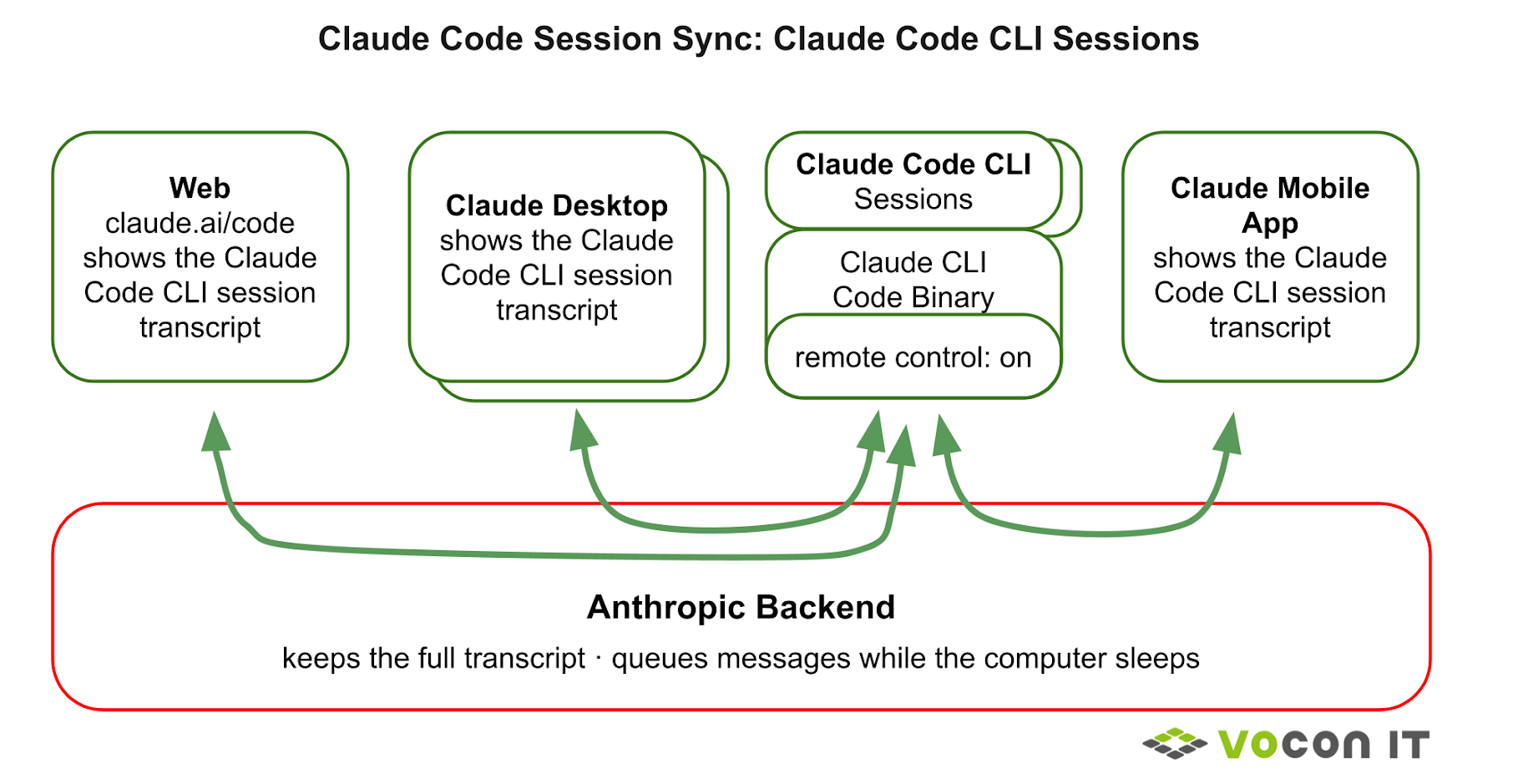
The session always runs on my notebook. Browser, phone and Desktop are just windows into it. They reach it through the Anthropic backend, and only if Remote Control is on for that session.
- Remote Control on: the session shows up in claude.ai/code, the mobile app and Claude Desktop within seconds, and you can chat with it from any of them.
- Remote Control off: the session stays invisible outside the notebook or even inside the notebook’s Claude Desktop or browser sessions.
- How to switch it:
/remote-controlin a running session turns it on or off."remoteControlAtStartup": truein~/.claude/settings.jsonturns it on for every new session. That’s why, for me, “all sessions showed up everywhere”.- To keep one repo private, put
"remoteControlAtStartup": falsein that repo’s.claude/settings.local.json. There is no--no-remote-controlflag.
Sessions started in Claude Desktop
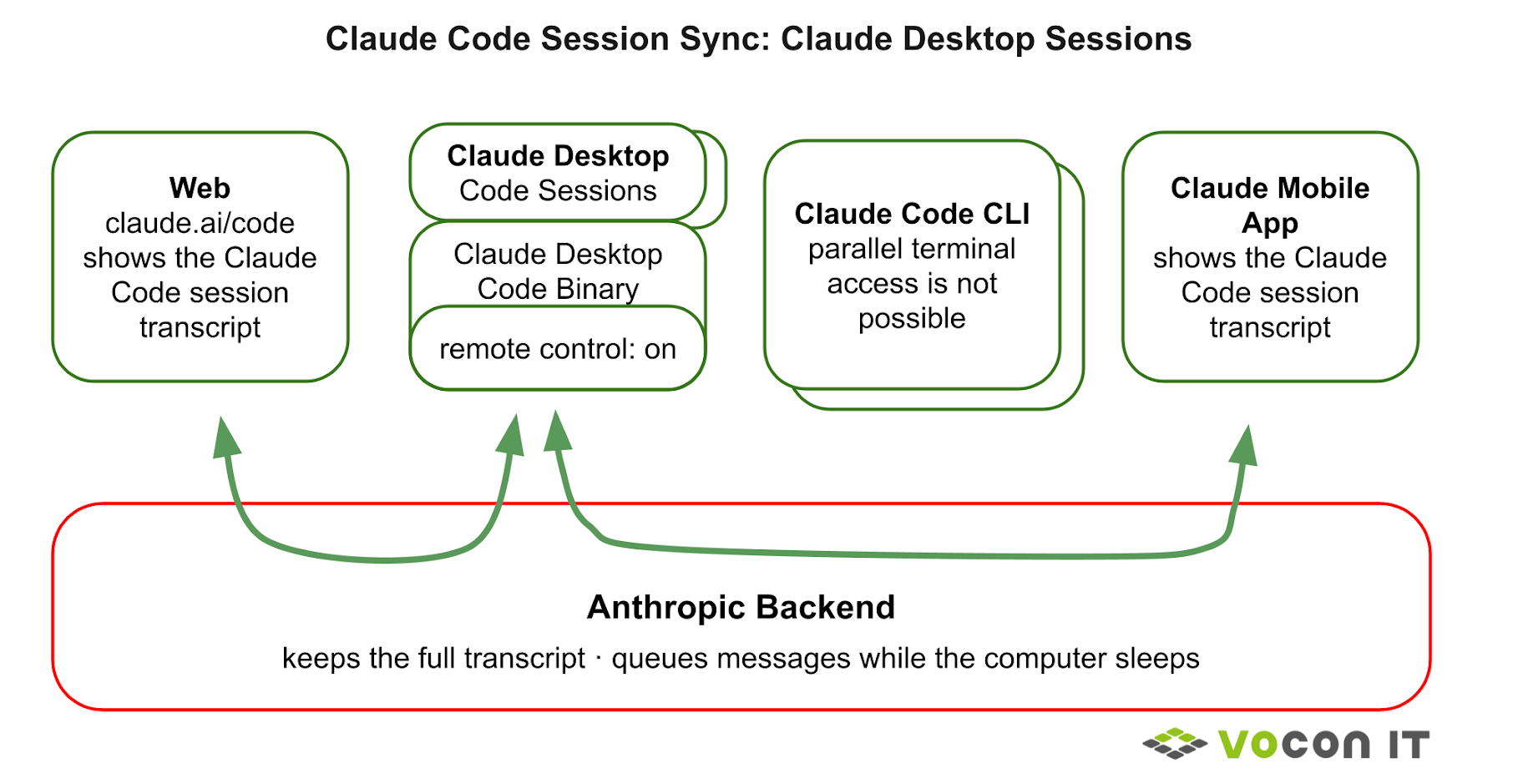
- A session started in Desktop’s Code tab syncs the same way: it is listed on claude.ai/code and in the mobile app.
- Desktop runs it with its own Claude Code binary (more on that in section 3).
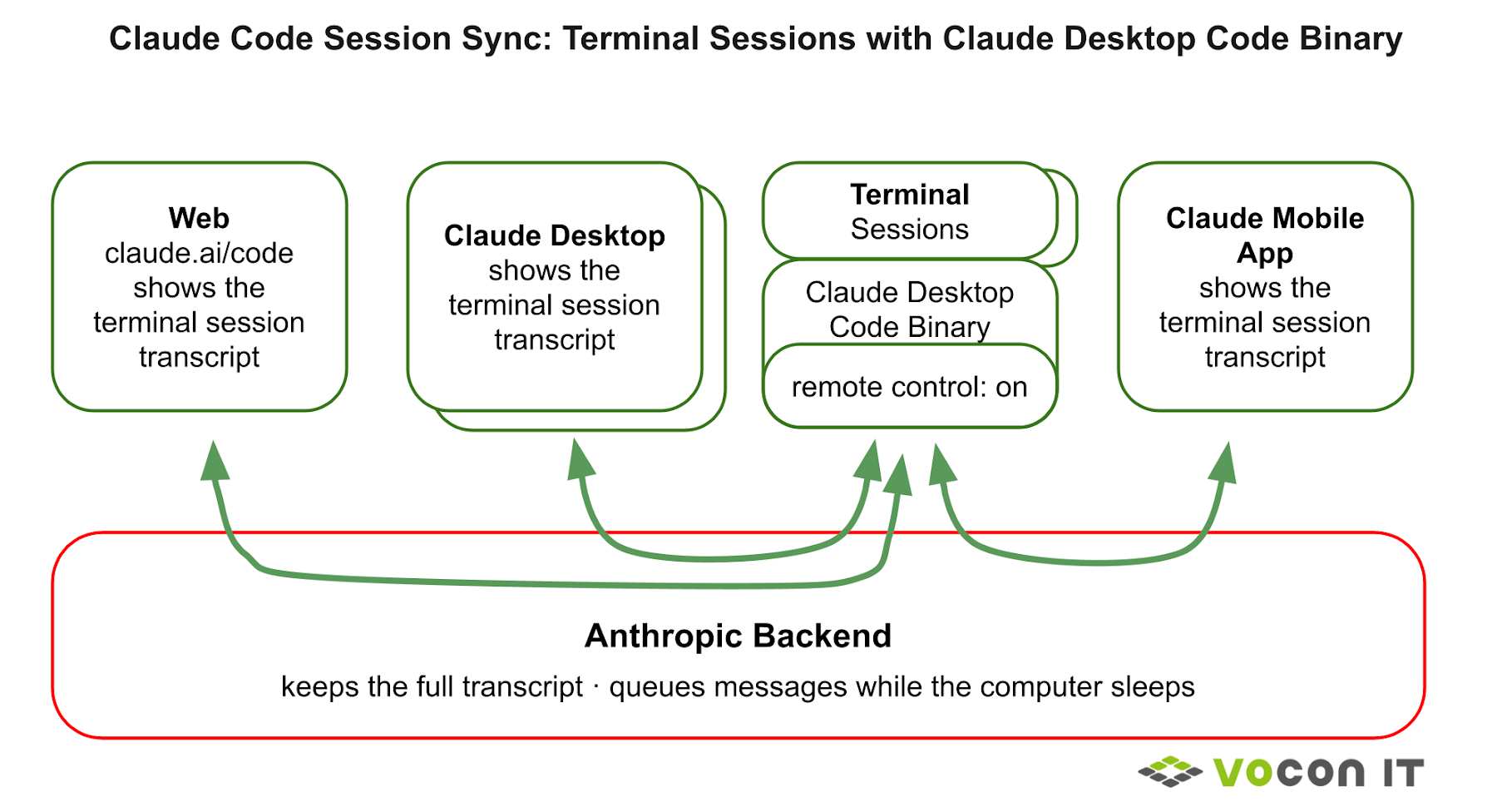
- Starting Desktop’s binary in a terminal makes no difference: the session behaves exactly like one started with the native CLI.
The backend keeps the transcript, not just the messages
I wanted to know whether the backend only relays messages or actually stores the conversation. So I ran a test:
- On my old notebook, I started a session, asked one question, turned on Remote Control, and put the notebook to sleep.
- On my second notebook, which had been switched off the whole time, I opened claude.ai/code.
- The session was there, with the full transcript. Nothing could have been cached on that notebook, so it came from Anthropic’s cloud.
Then I typed “Hi”. After about a minute: “Can’t reach your computer. It may be asleep or offline. This session will reconnect when it’s back.”
I didn’t expect what happened next:
- The message waits in a queue. I closed the browser tab, so the browser couldn’t hold it. When I woke the old notebook up, the session received the message and answered it. Question and answer showed up everywhere: in the terminal, in the browser, in Desktop.
- Other devices don’t show the queued message yet. Claude Desktop showed “computer not available”, but not my message. It appeared only after the notebook had taken it.
My reading: every device shows the session’s own transcript, and only the notebook writes to it. A new message waits in the backend until the session confirms it. That’s my interpretation of the tests, not documented behaviour.
So you can send a task to a sleeping computer, close everything, and the session picks it up when the computer wakes. Until then, the message is visible only on the device you typed it on. Don’t assume it got lost.
Small things worth knowing
- The session list doesn’t tell you which computer a session runs on. It shows the session name and the working directory. With two notebooks, I can’t see which one is asleep. A naming habit helps, e.g.
claude --name "hotfix @office-notebook". /clearstarts a new session. The chat looks empty in the terminal and in the browser, and the session gets a new ID. The old transcript is still on disk in~/.claude/projects/and can be resumed withclaude --resume <id>.
What doesn’t sync
Remote Control syncs the conversation. Everything else stays on the notebook:
- the configuration in
~/.claude: settings,CLAUDE.md, skills, rules, auto memory - the full context the model works with: system prompt, tool definitions, the summary after
/compact - full tool output, the working directory, environment variables
- local MCP servers
A second notebook sees none of that. It only sees the chat.
2. Cloud MCP connectors: the same tools from every screen
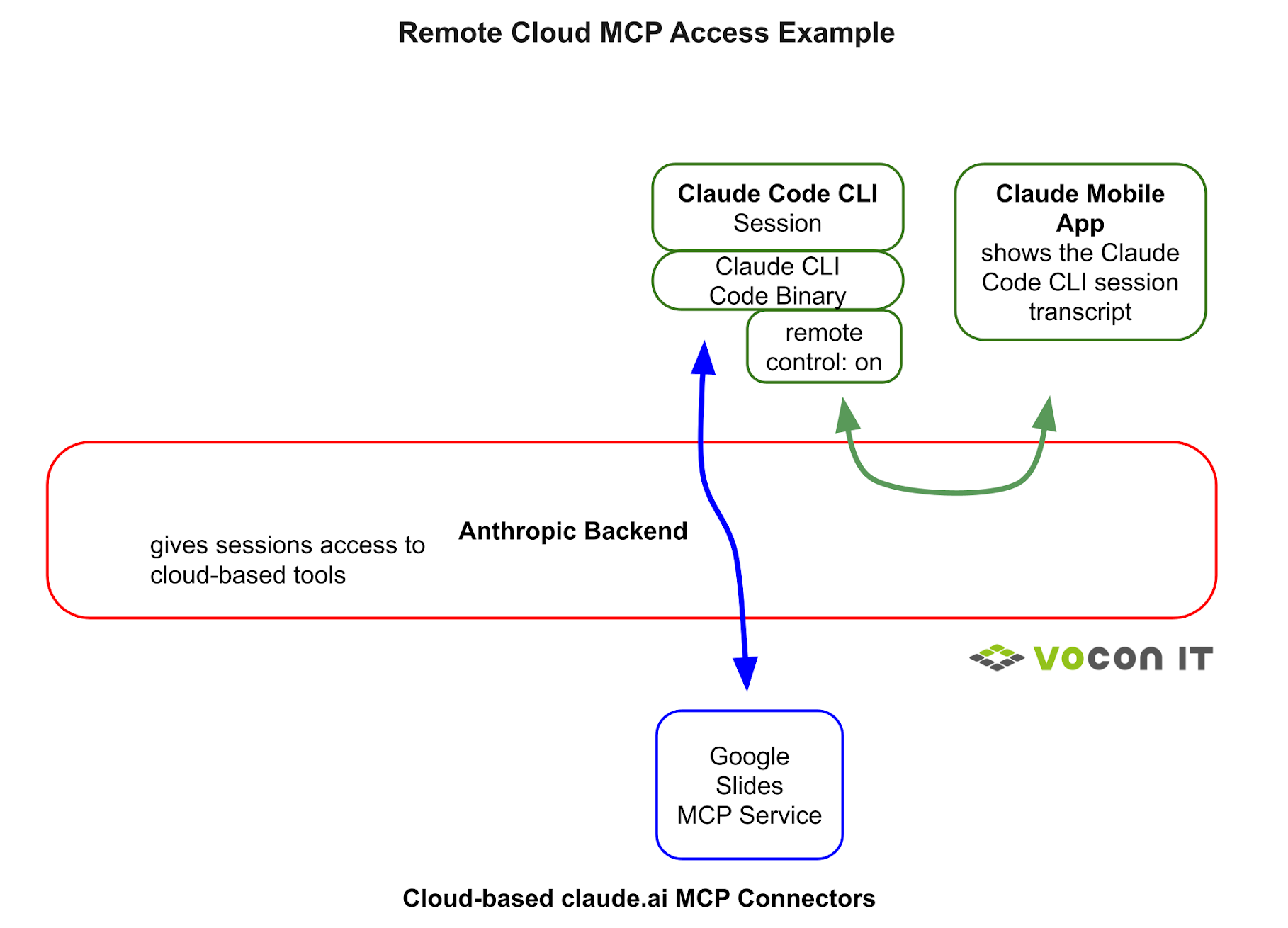
A first draft of the figures in this article was made exactly this way: a Claude Code CLI session on my notebook drew a proposal in Google Slides through the claude.ai Google Slides connector, while I followed along from another device.
- claude.ai connectors (Google Drive, Gmail, Google Slides, WordPress.com, Cloudflare Developer Platform, …) are connected once in your claude.ai account. New Claude Code sessions list them in
/mcp, next to the local MCP servers. - This needs a claude.ai subscription login. With an API key or a
claude setup-tokentoken, the connectors don’t load. - A running session doesn’t see a newly connected connector until you run
/mcp reconnect. - Remote Control is not needed for the connectors. It’s only needed to steer the session from the phone.
3. The full picture
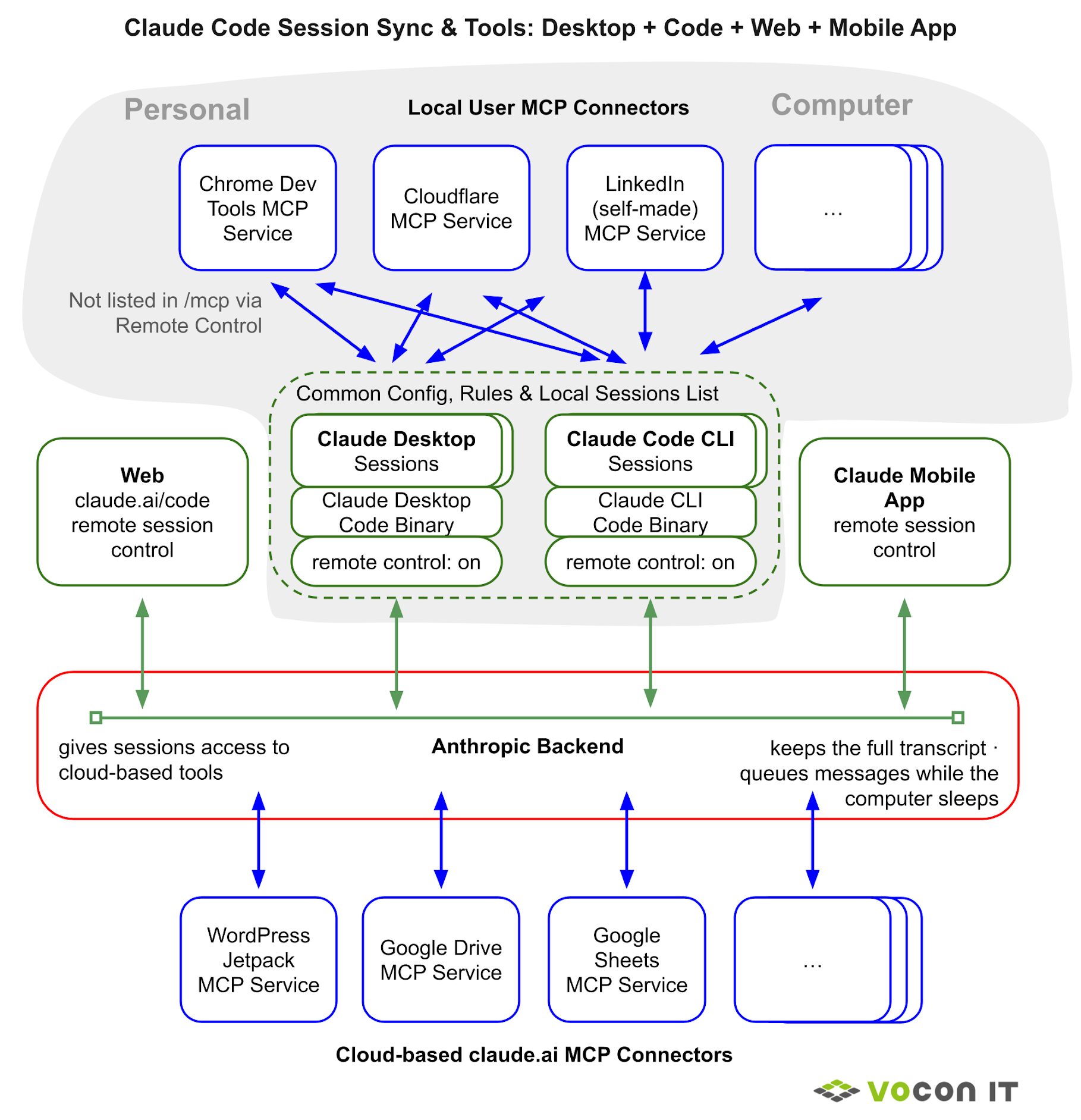
Everything inside the gray outline stays on your personal computer. Browser and mobile app work from anywhere. Two things on the computer side surprised me.
Claude Desktop brings its own Claude Code.
- Desktop’s Code tab runs a bundled Claude Code binary, not the
claudeon your PATH. On my Windows notebook that was version 2.1.325 in Desktop vs 2.1.311 in the terminal, on the same day. - Both read the same
~/.claude, so settings, skills, rules and memory are shared. - The two versions update separately.
claude --versioninside a Desktop session prints the PATH version, not the one that runs.
/mcp via Remote Control doesn’t list local MCP servers.
- I opened one of my CLI sessions in Claude Desktop and typed
/mcp. Desktop showed only the claude.ai connectors, not the local MCP servers the session uses (Chrome DevTools, Cloudflare, my self-made LinkedIn server). - The session still has them. When I asked it in plain text, “which MCP connectors do you see?”, it listed all of them. In the terminal,
/mcplists them too. - A session started in Desktop’s Code tab behaves differently: its
/mcpdialog lists the claude.ai connectors and the local MCP servers (chrome-devtools, cloudflare, linkedin, marked “User”). - Desktop’s own binary started in a terminal gives the same connector-only view as the native CLI. Setting the undocumented environment variable
CLAUDE_CODE_ENTRYPOINT=claude-desktopdoesn’t change it either. - My reading: Desktop didn’t start such a session, so it can only reach it through Remote Control, and that view lists only the cloud connectors. Which binary runs the session doesn’t matter.
Side note: sessions on the same computer can also message each other directly, CLI to CLI, Desktop to Desktop, and CLI to Desktop. That path uses named pipes on Windows and Unix sockets on Linux and macOS, so it works with Remote Control off. More on that in my article on agent-to-agent communication.
Takeaways
- Remote Control is the switch. On: the session is visible and steerable on every device. Off: it stays on your computer.
- The backend keeps the transcript and queues new messages, even while your computer sleeps. Fire and forget works.
- Only the conversation syncs. Configuration, memory, local MCP servers and the model’s full context stay on the computer that runs the session.
- Cloud connectors follow your claude.ai login, local MCP servers follow your computer.
- Desktop and terminal run different Claude Code binaries with the same configuration. Check both versions when something behaves differently.
How do you work with Claude Code across devices? Have you hit a sync surprise I missed?
Tests behind this article
| Date | Test | Result |
|---|---|---|
| 2026-11-16 | Remote Control on vs off | The session shows up on other devices only with Remote Control on. |
| 2026-11-16 | Desktop’s binary vs the CLI on PATH | Different versions, same ~/.claude. |
| 2026-11-16 | Messages between local sessions | Work CLI to CLI, Desktop to Desktop and CLI to Desktop, without Remote Control. |
| 2026-11-17 | /mcp in Desktop for a CLI session | Only claude.ai connectors listed; the session still uses its local MCP servers. |
| 2026-11-19 | /clear | New session ID; the old transcript stays resumable. |
| 2026-11-19 | Notebook asleep, session opened on a second notebook that had been off | Full transcript shown, served by the backend. |
| 2026-11-19 | Message sent to the sleeping notebook, browser closed | Queued and answered after wake-up; other devices show it only after that. |
| 2026-11-21 | claude.ai connectors with Remote Control off | Listed and working. |
| 2026-11-21 | Session started in Desktop’s Code tab | Listed on claude.ai/code; Desktop’s /mcp lists the local MCP servers. |
| 2026-11-21 | Desktop’s binary started in a terminal, also with CLAUDE_CODE_ENTRYPOINT=claude-desktop | Same connector-only /mcp view in Desktop as the native CLI. |
| 2026-11-23 | Session started in Desktop, closed there, then resumed in a terminal with claude --resume <id> | Works; the new turns go into the same transcript (no copy). |